PLNU Human Performance Lab
How to check out lab equipment
All lab equipment is taken, returned, and reserved through one website. This guide shows each step. The website works on the lab iPads, on a laptop, and on your phone.
Websitesportscience.drjacobgoodin.comThese instructions are also on the site under Instructions, with a button to download this PDF.
Who can use it
Anyone on the lab list can open the site and look at the calendar, the equipment, and where everything is. Kinesiology faculty, the strength and conditioning staff, and the MS-KIN students are on the list. Checking out and reserving equipment is a separate permission. Faculty, staff, and the GAs have it. Other students see “view only” next to their name until a faculty member turns it on for them under Admin, then People, by ticking Can check out. If your name is missing altogether, tap Request access at the bottom of the check-out screen.
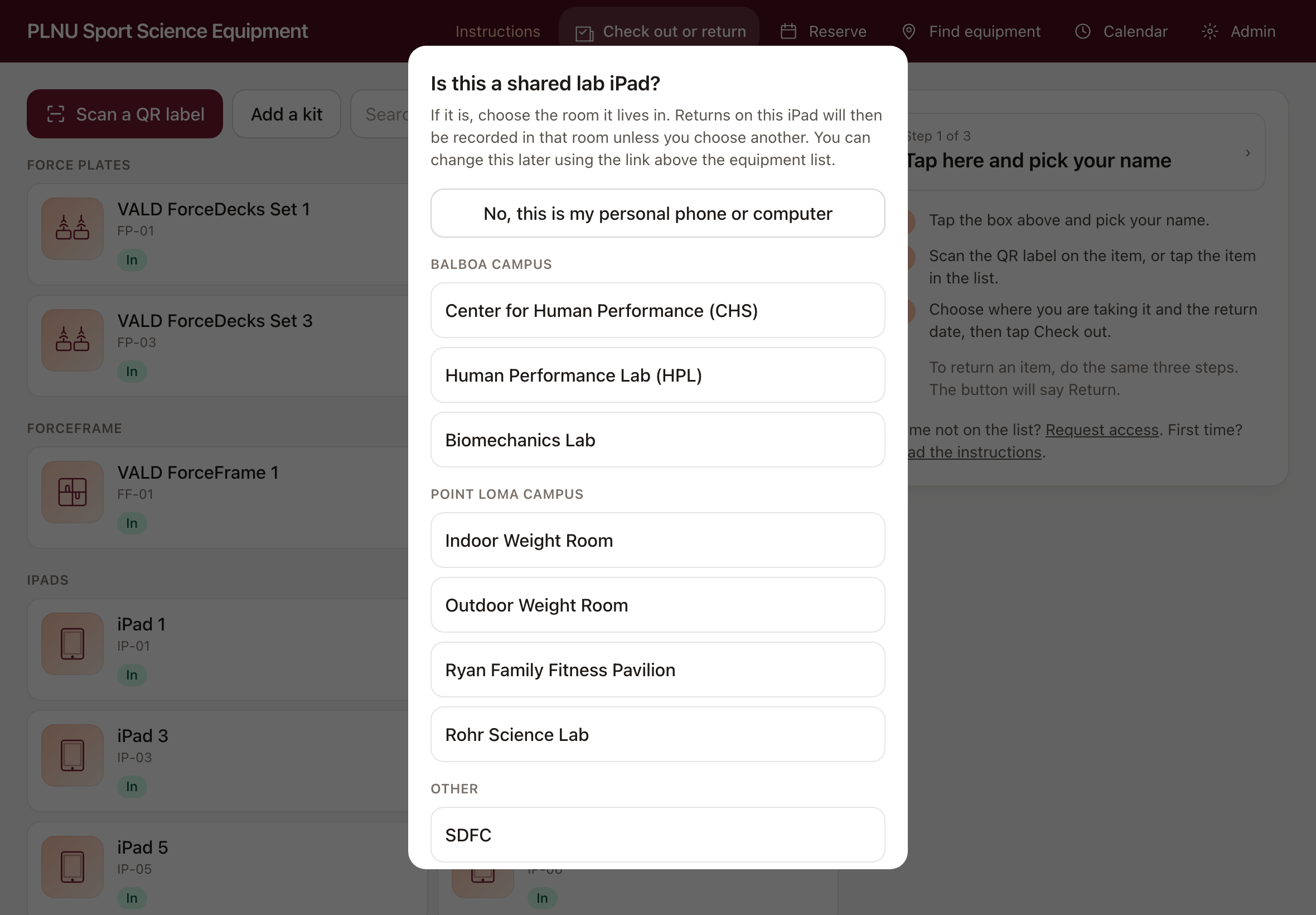
The first time the website opens on a shared lab iPad, it asks which room the iPad lives in. Choose the room once and the iPad remembers it. Returns on that iPad are then recorded in that room unless you choose another. Personal phones and computers are not asked. If you do see the question on your own device, tap No, this is my personal phone or computer.
Add the app to your phone or iPad
The website can be added to your home screen so it opens like an app, with its own icon and no browser bar. This takes about ten seconds and you only do it once.
- iPhone or iPad. Open the site in Safari. Tap the Share button (the square with an arrow pointing up). Scroll down and tap Add to Home Screen, then tap Add.
- Android. Open the site in Chrome. Tap the three-dot menu in the top right. Tap Install app or Add to Home screen, then confirm.
- Laptop. In Chrome or Edge, click the install icon at the right end of the address bar, then click Install.
The site also shows these steps in a small box at the top of the screen the first time you open it on a phone. The lab iPads already have the icon on their home screens.
How to take equipment out of the lab
Everything happens on one screen, called Equipment. You do not need to check anything out to use equipment in the room where it lives. Taking it out of that room is what needs a check-out.
- Pick your name.
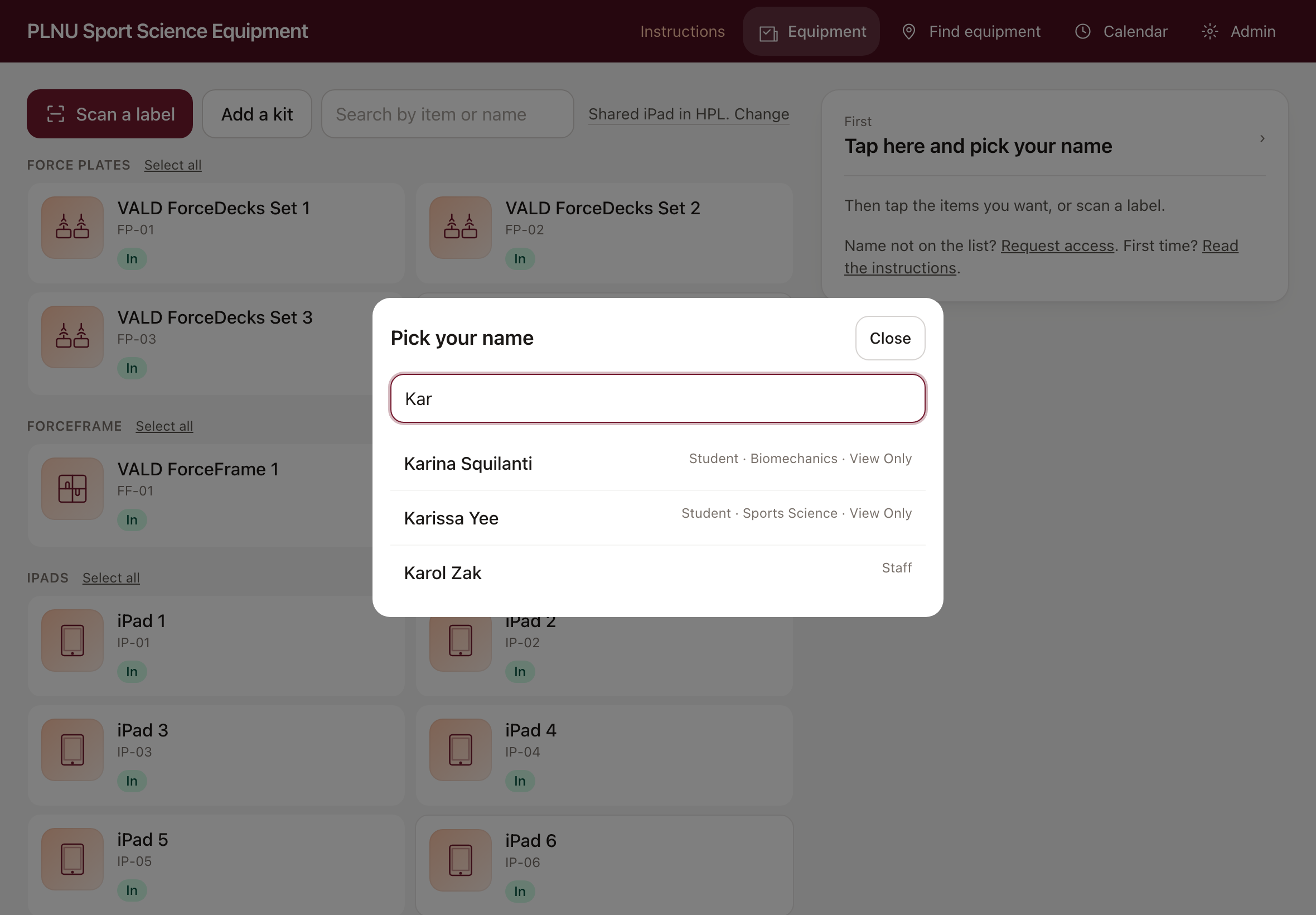
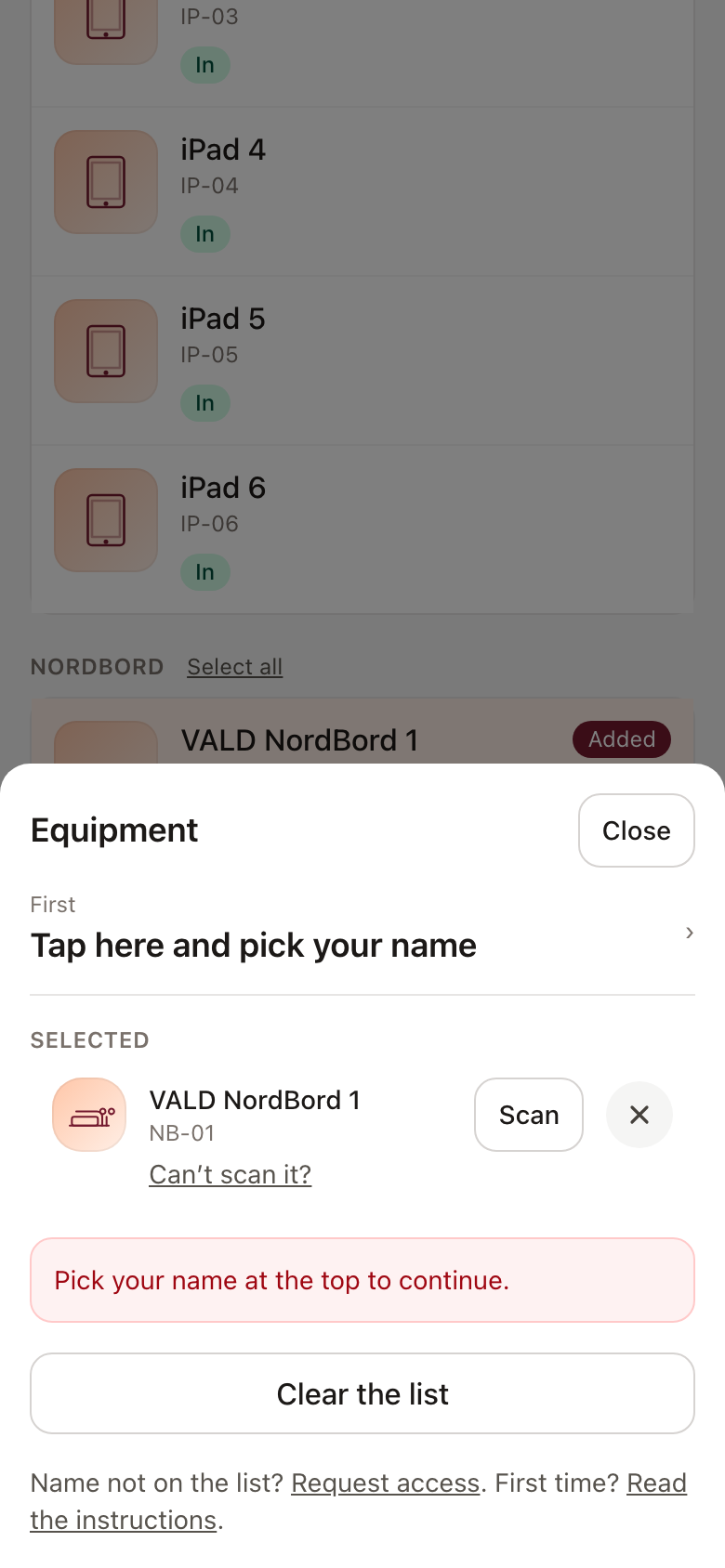
Tap the box at the top of the panel that says Tap here and pick your name. Type your name and tap it in the list. The device remembers the last person who used it, so check that the name shown is yours.
- Select the items and scan each one.
Tap the items in the list, or tap Add a kit for a set. Then, for each item, tap Scan and point the camera at its label, or hold your phone against the item’s sticker. Each item shows Scanned once it is confirmed. This proves the equipment is in your hands. If a label is damaged, tap Can’t scan it?, type the code printed on the label, and say why. The lab sees those in the daily summary.
- Choose where it is going and when it comes back, then tap Take.
Under Taking it now, choose the room or venue and tap a return date. The Take button turns on once every item is scanned.
Some items usually travel with others. When you select a set of force plates, the foam surround and the IMTP rigs appear under it as one-tap adds. Each of those has its own label and needs its own scan.
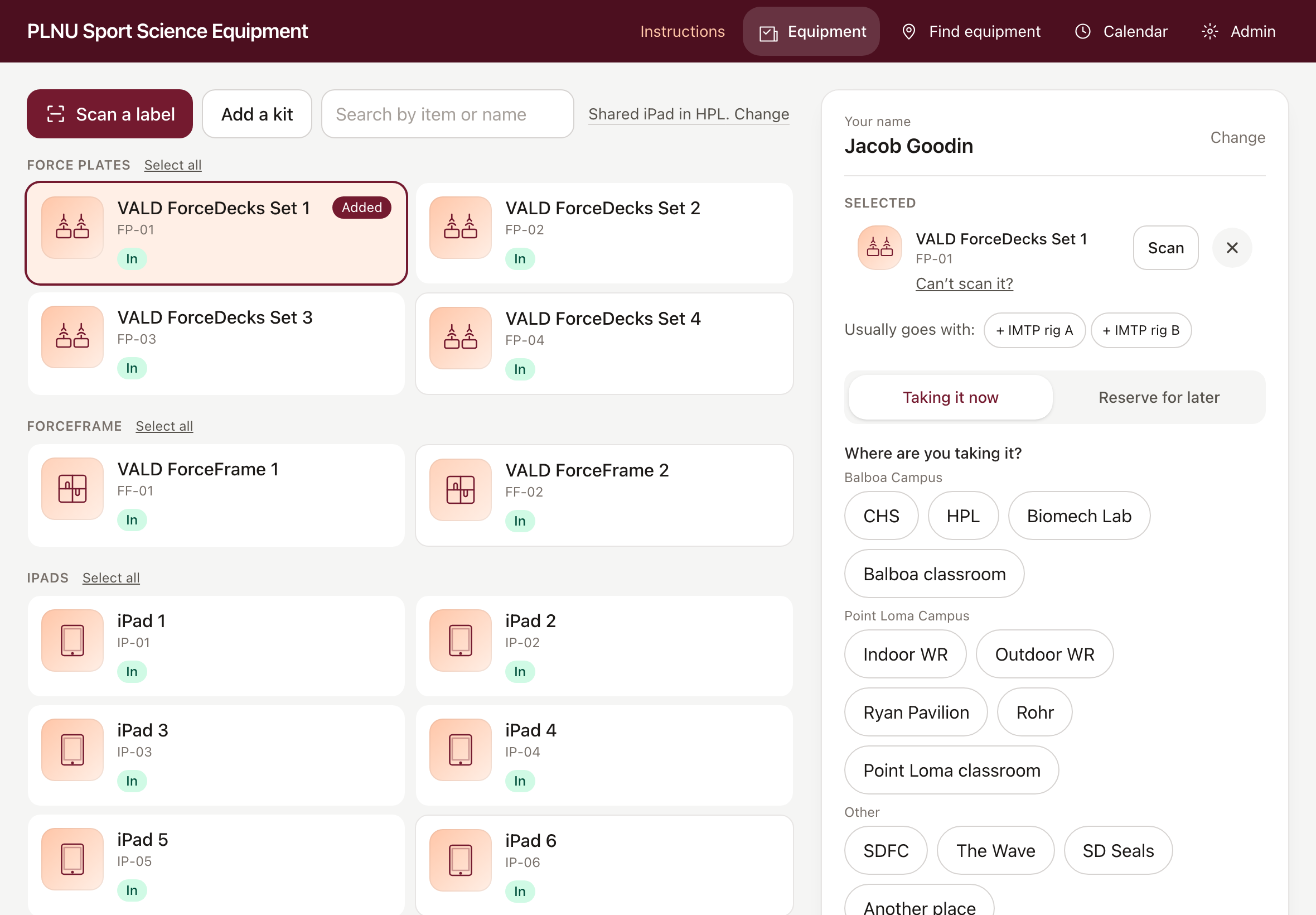
After you take equipment, you get an email listing the items and the return date. The check-out is also added to the Human Performance Testing and Research calendar.
How to return equipment
Pick your name, tap the items you are bringing back, and choose the room you are putting them in. The button says Return. No scan is needed to return. If you have several items out, a Return button for all of them appears as soon as you pick your name.
If an item is damaged or not working, tap Report a problem next to the item and describe the problem. The lab gets an email. An item reported as unusable is removed from the list until it is repaired.
Using your phone
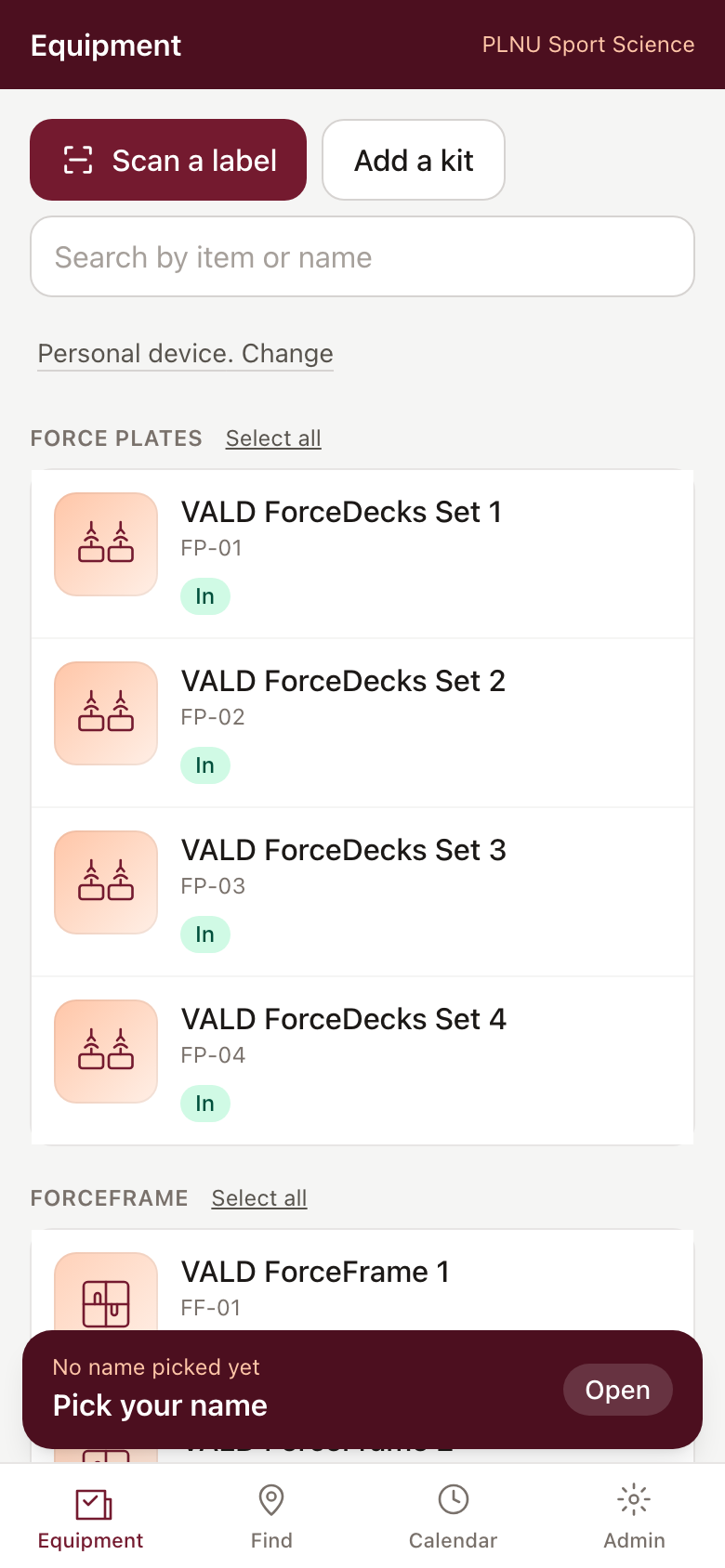
The website works on any phone. The equipment list fills the screen. The dark bar at the bottom opens the same panel that the iPad shows. Scanning uses your phone camera. You can also point your normal camera app at a QR sticker, and it opens the website with that item selected.
How to reserve equipment for later
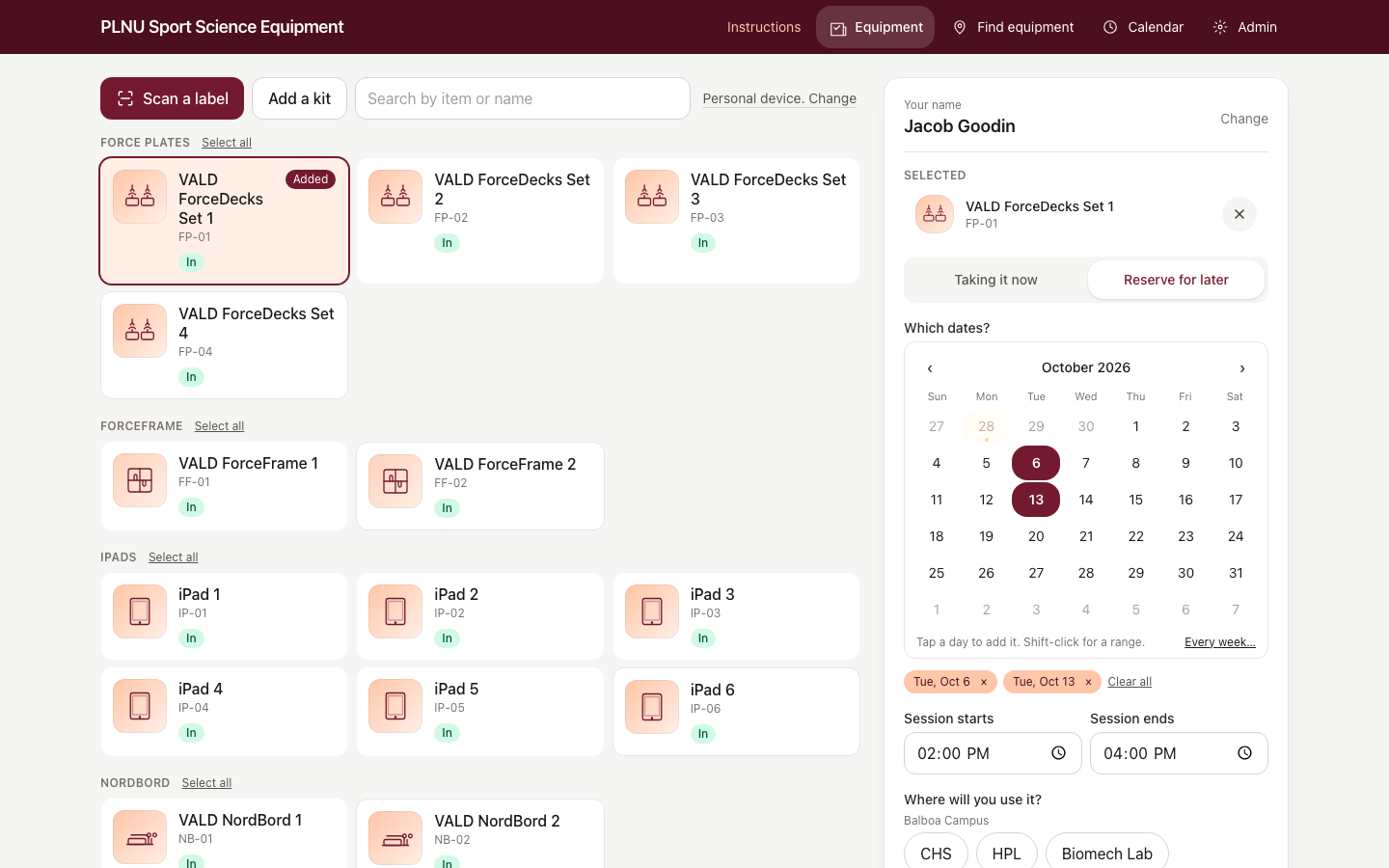
Reserving happens on the same Equipment screen. Pick your name and select the items, then tap Reserve for later in the panel.
- Pick the dates.
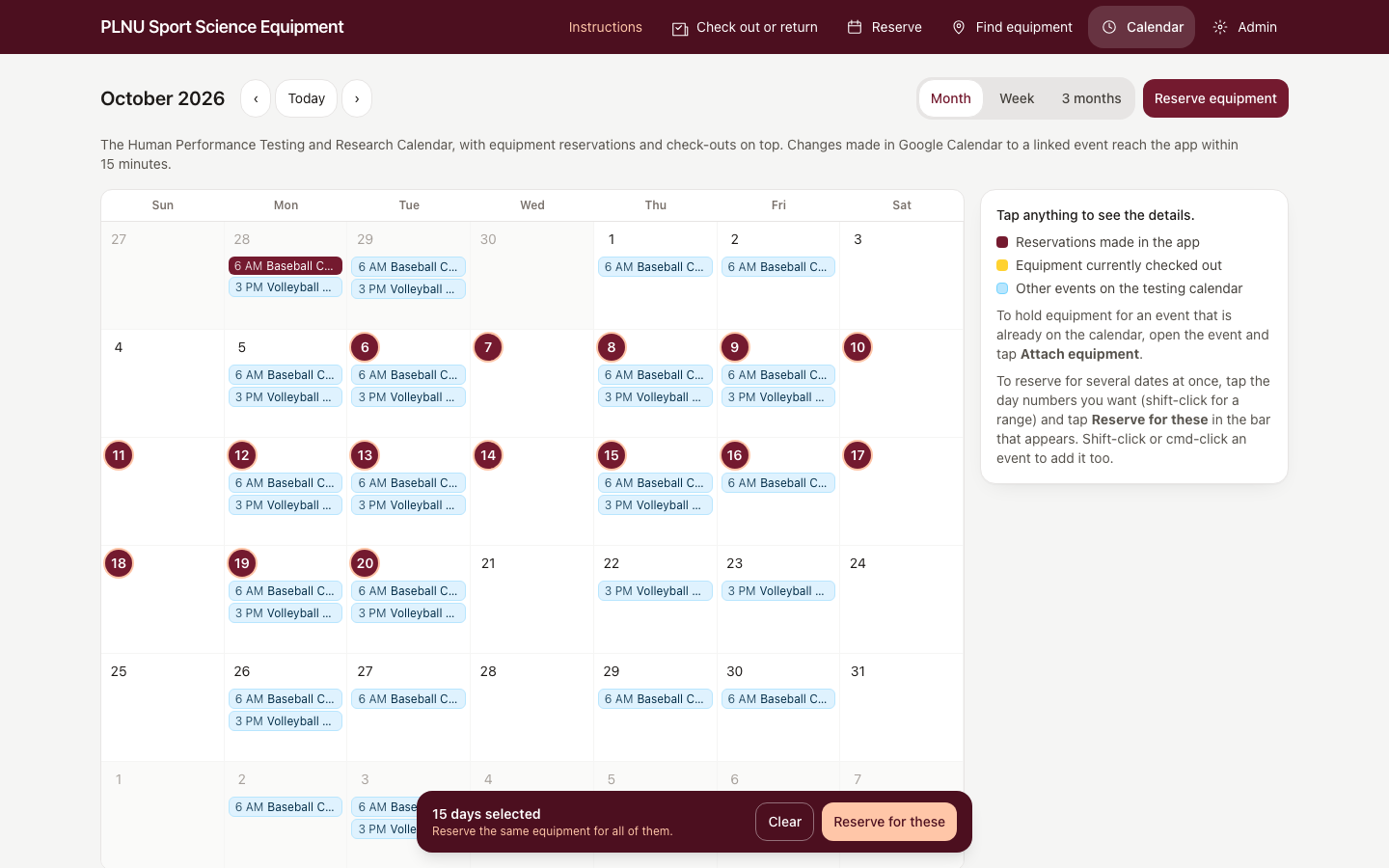
Tap each day you want in the small month grid. Shift-click to add a range. Tap Every week… to choose weekdays and a date range, and every matching day is added. Days that already carry a reservation show a small dot.
- Set the session time and the place.
Enter the session start and end. They apply to every date you picked. Choose where you will use the equipment.
- Tap Reserve.
The panel lists every date and whether the items are free. Free dates book, and any clashing dates are listed with the reason so you can change them. You get one email listing every date.
The defaults do the usual thing: the session goes on the testing calendar, the equipment is held from two hours before the session to two hours after. Tap More options to change the pickup and return, for example the evening before and the next afternoon, to add a session name or purpose, or to hold the equipment without putting a session on the calendar.
If the reservation is for the room where the equipment lives, there is nothing to pick up. The equipment is held for you and the reservation completes on its own. Otherwise, on the pickup date, pick your name at the lab iPad, tap the reservation under Ready to pick up, scan each item, and tap Take. If the items are not scanned and taken within two hours of the session start, that day’s reservation is cancelled.
If the session is already on the calendar
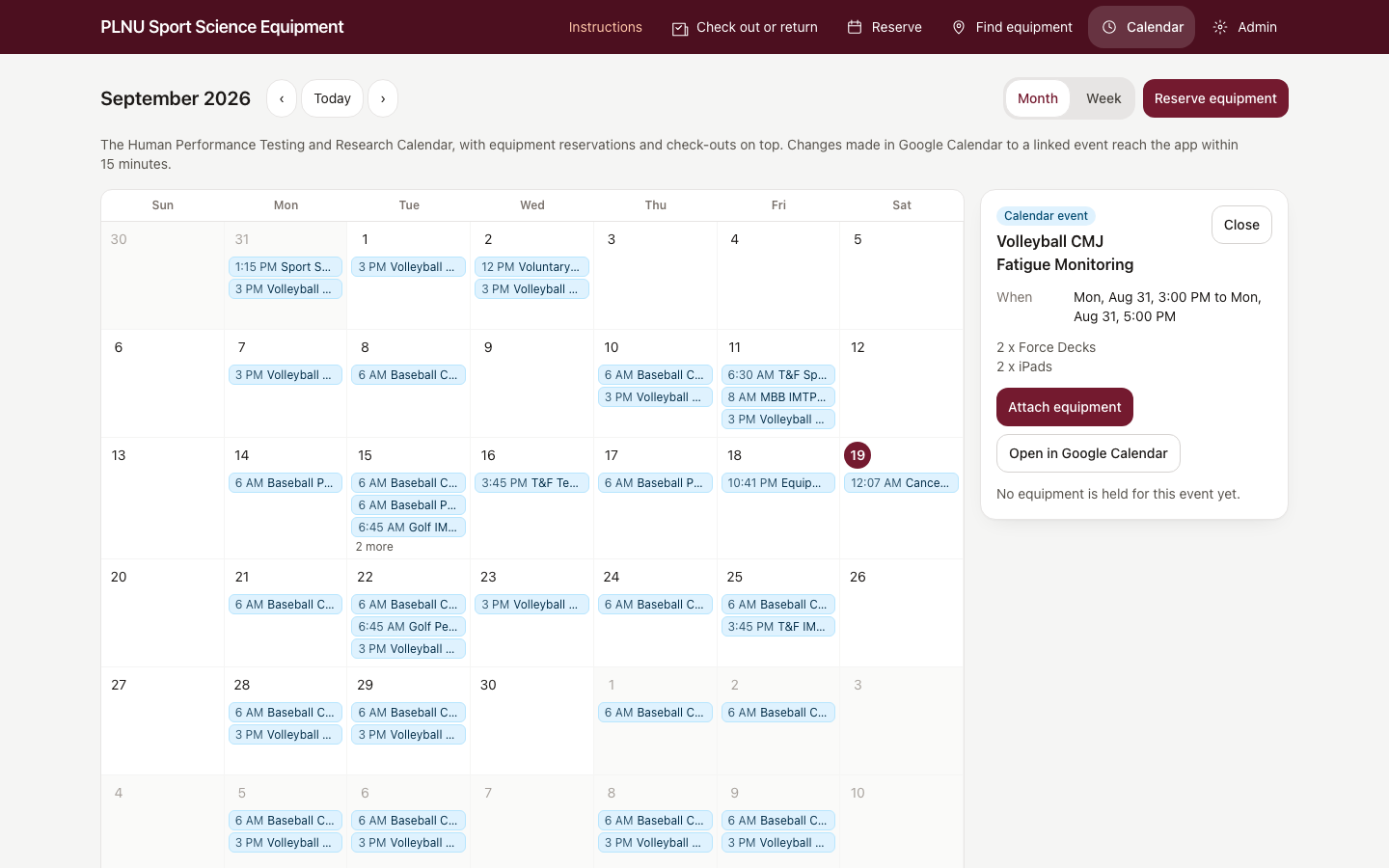
Open Calendar in the app, tap the event, and tap Attach equipment. The Equipment screen opens with the event already chosen. Select the items and set the pickup and return times, then tap Attach equipment. The equipment list is added to the event's description, and the event keeps its own time.
Changing or cancelling a reservation
Open the reservation from the calendar or from the confirmation email, and tap Change items or times. Only the person who made the reservation, or the lab, can change or cancel it. If a linked event is moved or deleted in Google Calendar, the reservation moves or is cancelled to match within 15 minutes, and you get an email. If the new time clashes with another reservation, the old times are kept and the email says so.
The calendar
Open Calendar to see the testing calendar by month, by week, or as a list of the next three months for planning. Reservations made in the app are dark red, equipment that is currently checked out is amber, and other events on the calendar are blue. Tap anything to see who, where, and which equipment. From there you can open the reservation, attach equipment to an event, or open the event in Google Calendar.
How to find equipment
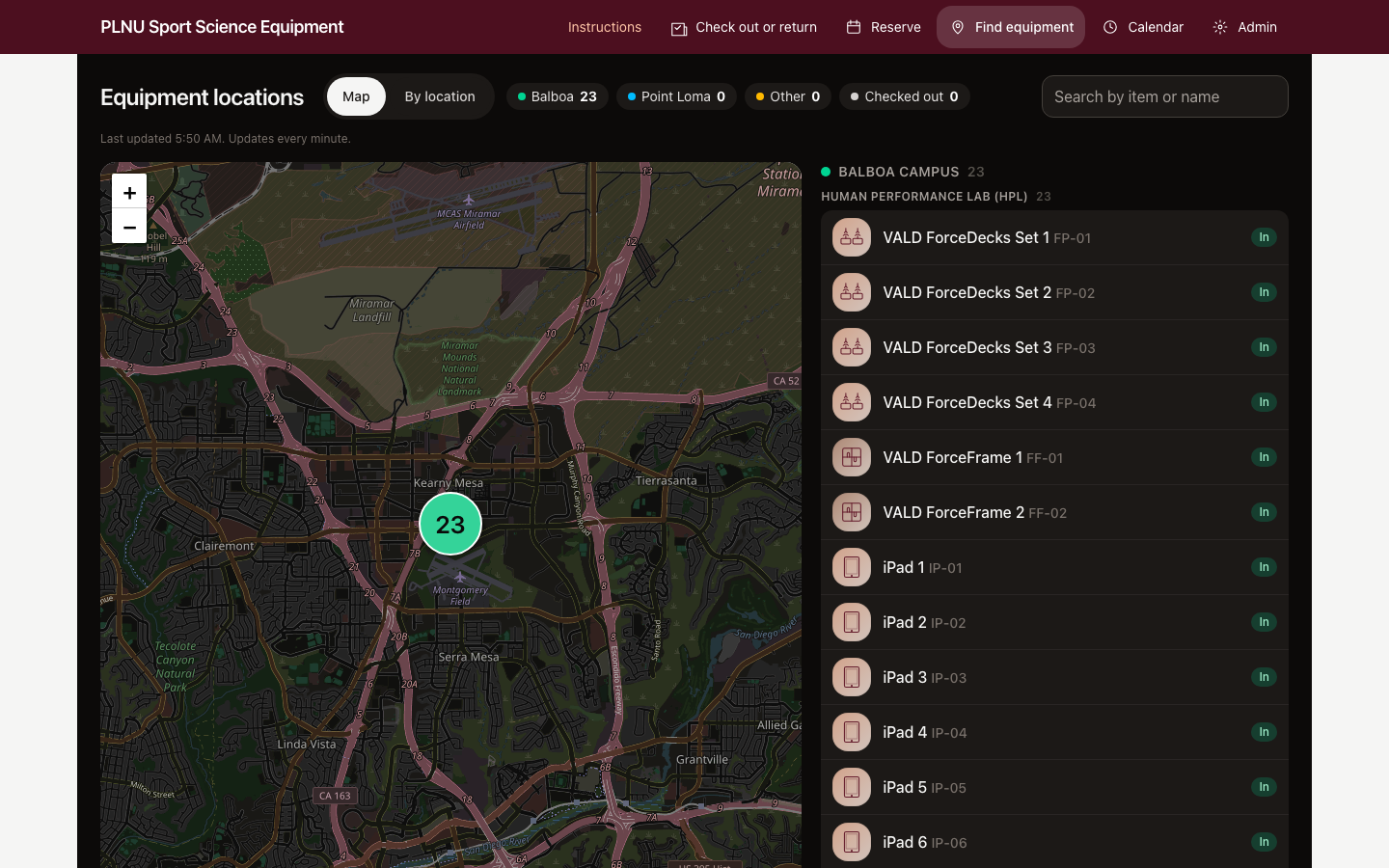
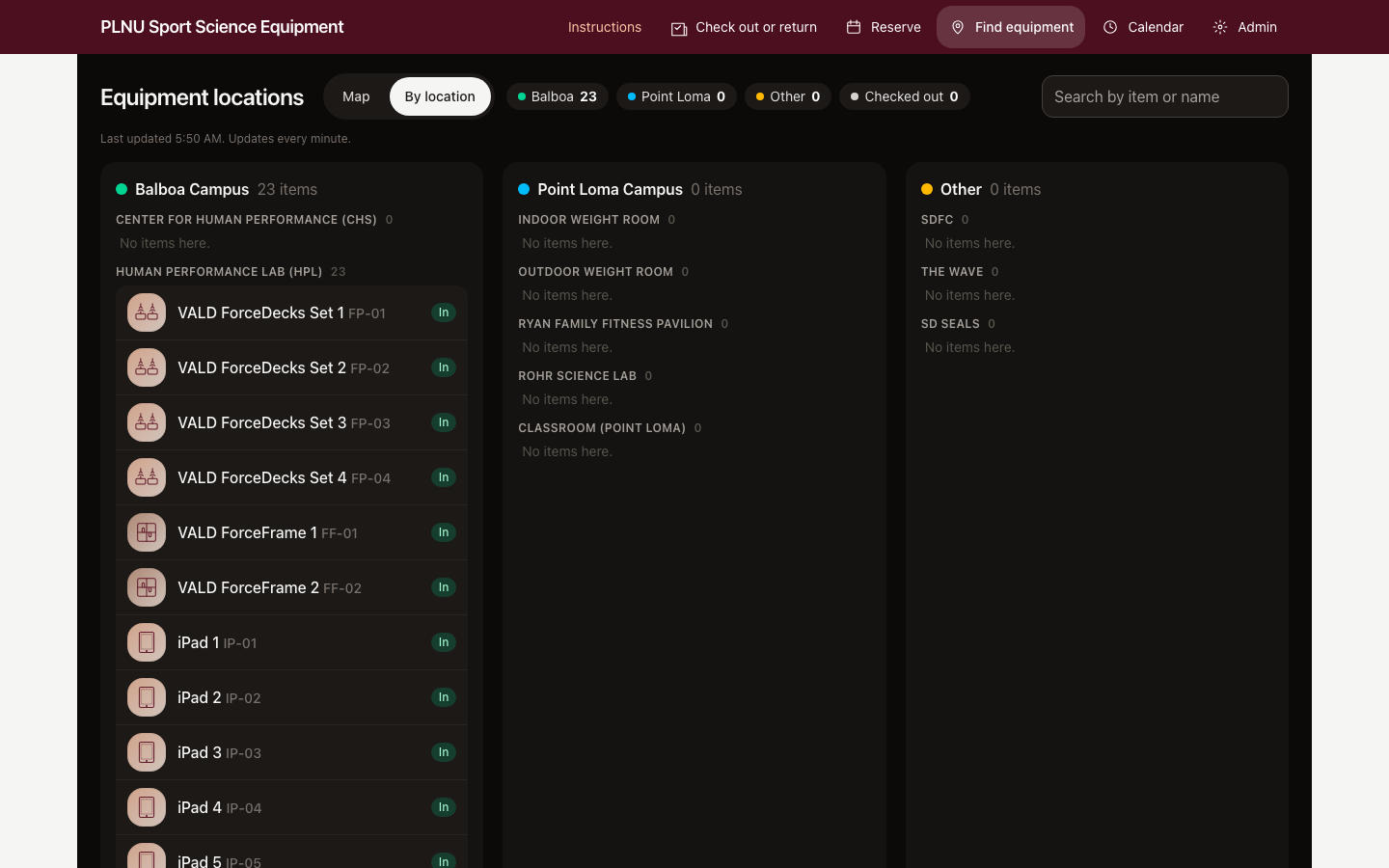
Open Find equipment to see where every item is right now. You can view a map or a list grouped by campus: Balboa, Point Loma, and other locations. Items that are checked out show who has them and the return date. You can search by item name or by person.
For lab admins
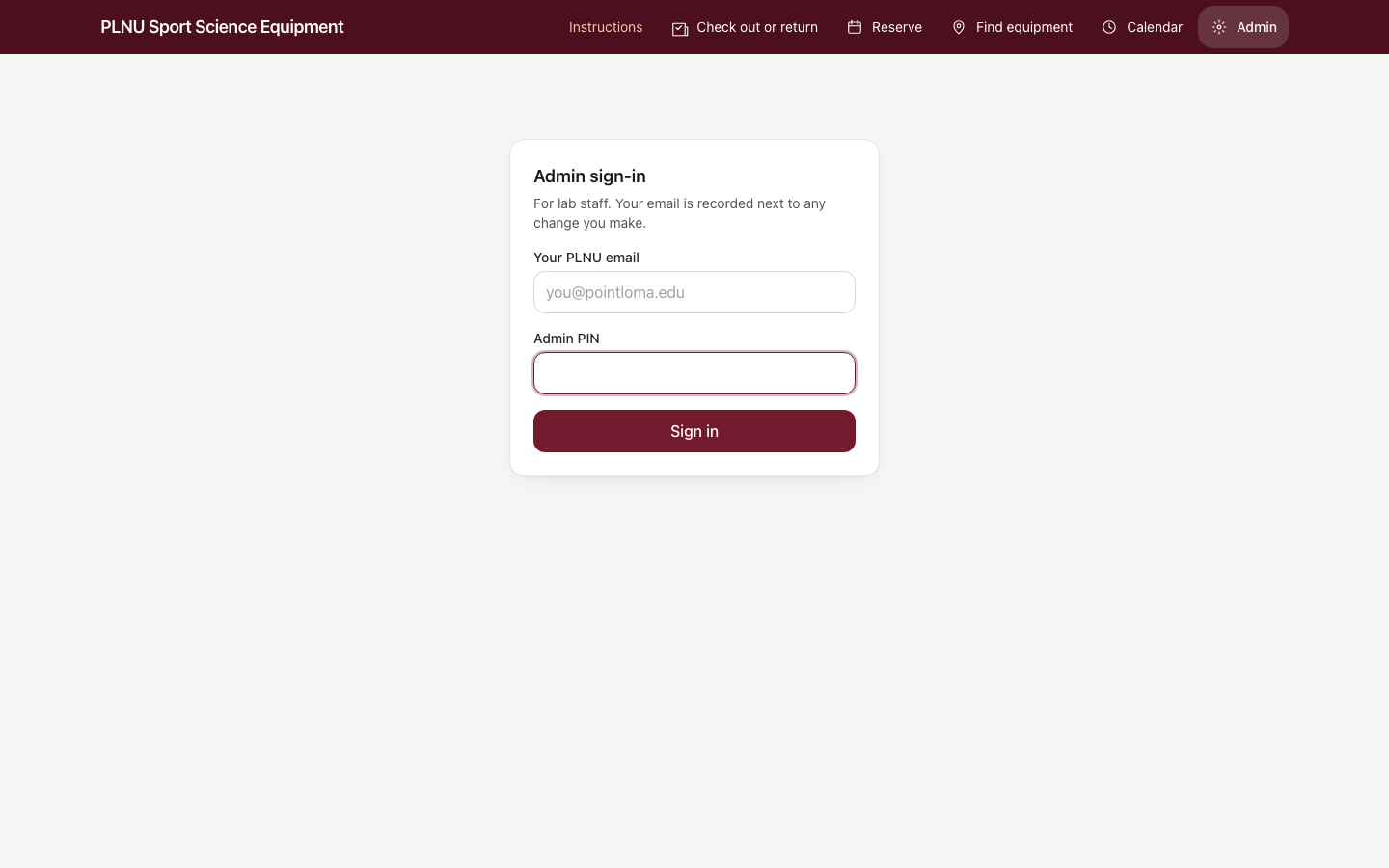
The Admin section needs a PIN. MS-KIN faculty have it. Ask Jacob if you need it. Admin includes the log of every check-out and return, the equipment list, the people list and access requests, kits, locations, usage reports, and the status of email and calendar connections. If someone returned an item without checking it in, mark it returned on the Admin overview page.
QR labels
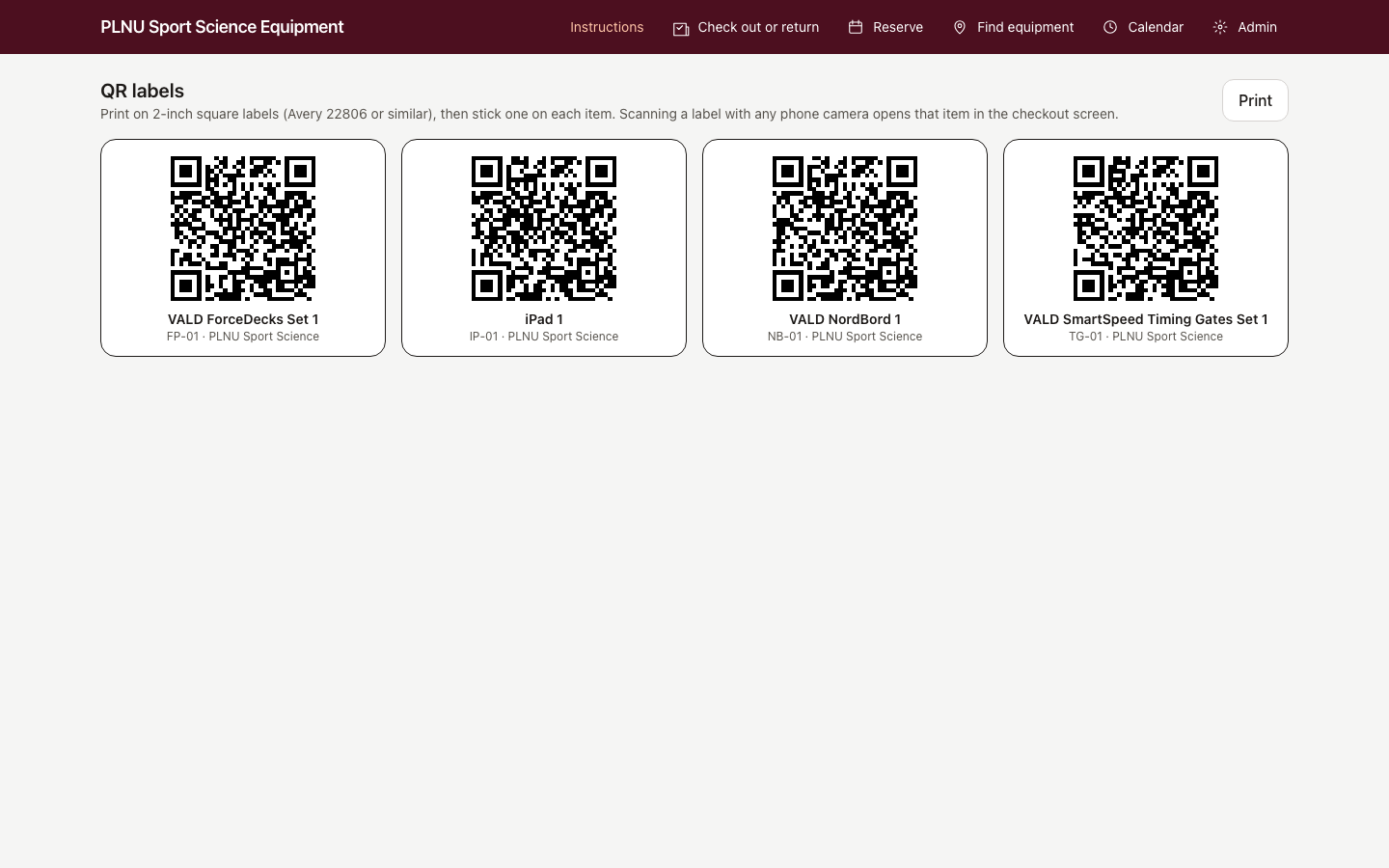
Each item has a 2-inch QR code sticker. To print the full sheet, open Admin, then Equipment, then Print all labels. Scanning a sticker with any camera opens the website with that item selected.
Remaining steps
These parts of the tracker are not finished yet.
- iPad ID numbers. The six iPads are listed as iPad 1 through iPad 6. Each one will get its actual ID number so you can tell them apart.
- Serial numbers and ID tags. Jacob will enter the serial number for every item and confirm the ID tag on each one. The labels will then be reprinted with the serial numbers on them.
- Additional items. If there is equipment you want tracked that is not in the list, email Jacob the item name and where it lives, and he will add it. Faculty can also add items themselves under Admin, then Equipment.
- Lab iPads. Add the app icon to the home screen of each lab iPad using the steps above.
- Labels. Print the sheet from Admin, then Equipment, and put one sticker on each item where it is easy to scan.
- Corrections. If a name or room is missing, or a step is unclear, email Jacob and he will fix it.
Quick reference
| Task | Steps |
|---|---|
| Use equipment in the room it lives in | Nothing to do. To hold it for a time, reserve it for that room. |
| Take an item out of the lab | Pick your name, tap the item, scan it, choose the place and return date, tap Take |
| Return an item | Pick your name, tap the item, choose the room, tap Return |
| Reserve for later | Pick your name and items, tap Reserve for later, pick the dates |
| Reserve many dates at once | Pick several days in the month grid, or tap the days on the Calendar page and tap Reserve for these |
| See the testing calendar | Open Calendar |
| Find an item | Open Find equipment |
| Report a problem | Tap Report a problem next to the item when you return it |
| Get added to the list | Tap Request access at the bottom of the check-out screen |